
How-To: Get Enrollment Status using File Manager
SalesHub built-in File Manager equipped with Direct Debit Enrollment file reader (DEF File). File Reader restructure the enrollment file into more human readable format, and most important it map response code using understanding text.
Prerequisite
– Download DEF file with content ( Files which size larger than 0 bytes) from Public Bank Web Portal
– Using at least SalesHub v2.06.21.0738 (Update following this instruction).
Details Instructions
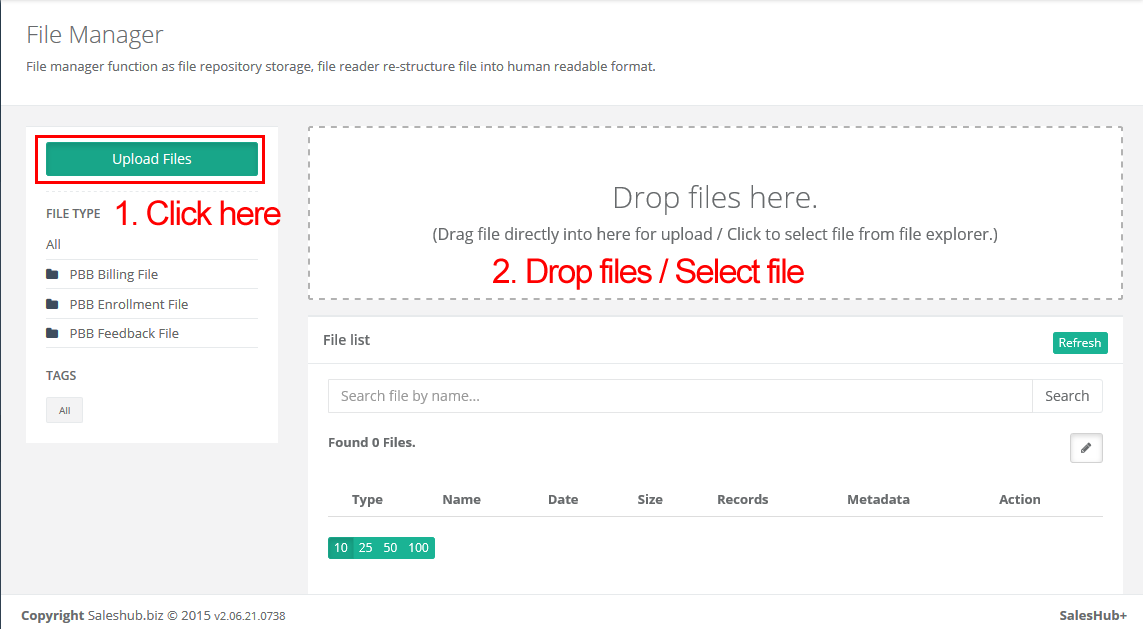
- Navigate to File Manager & upload enrollment file(s) to SalesHub
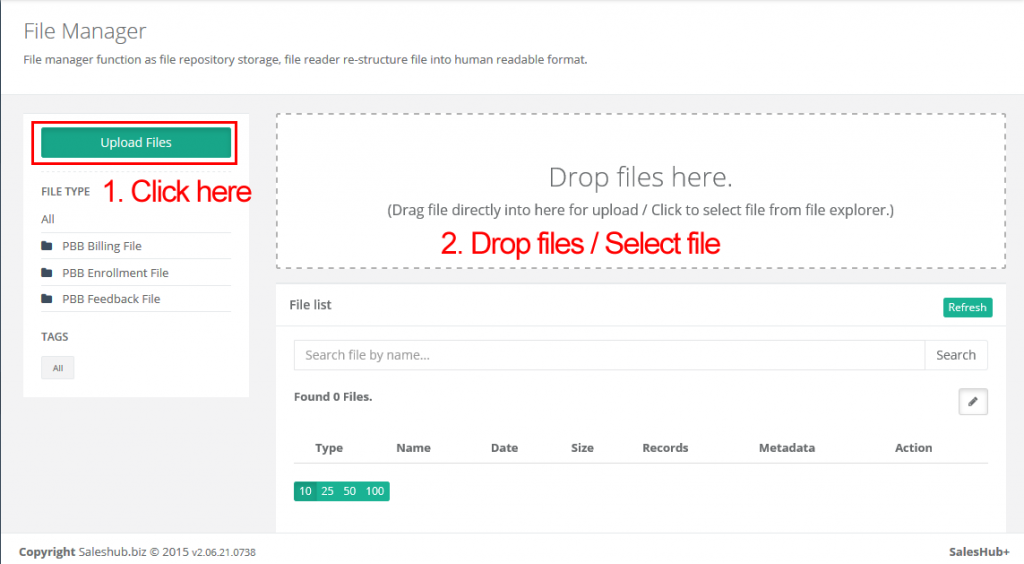
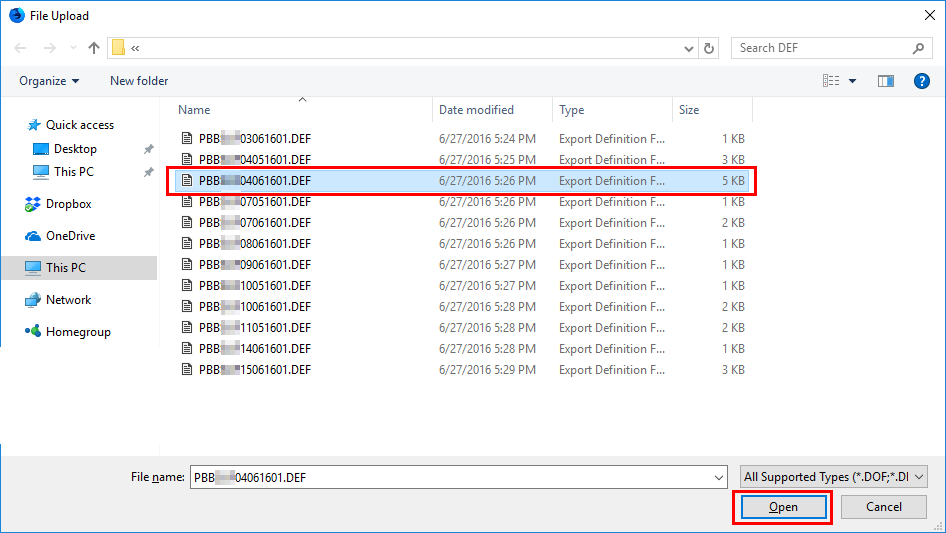
- Select single / Multiple enrollment file to upload
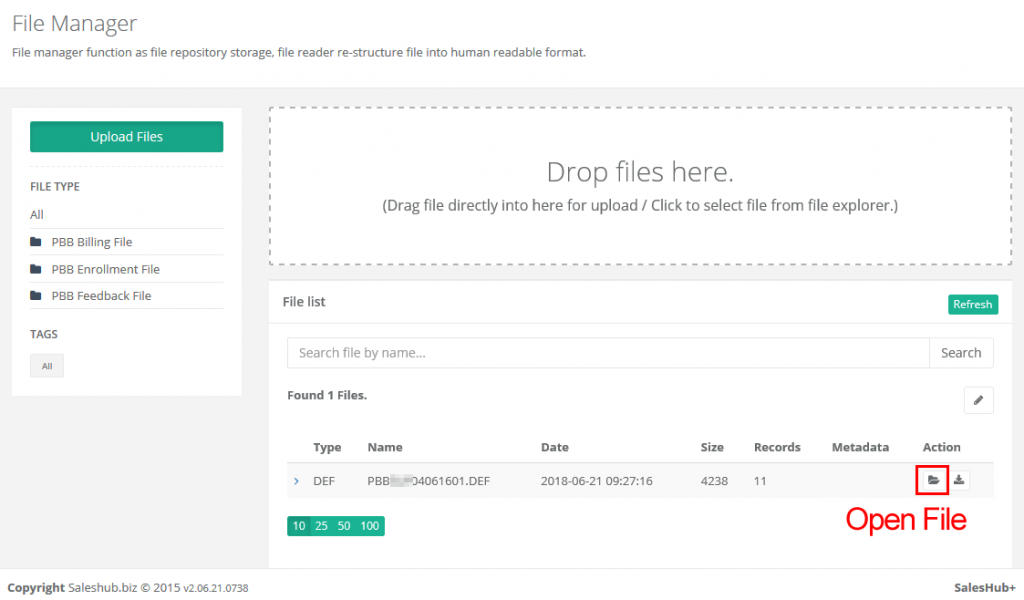
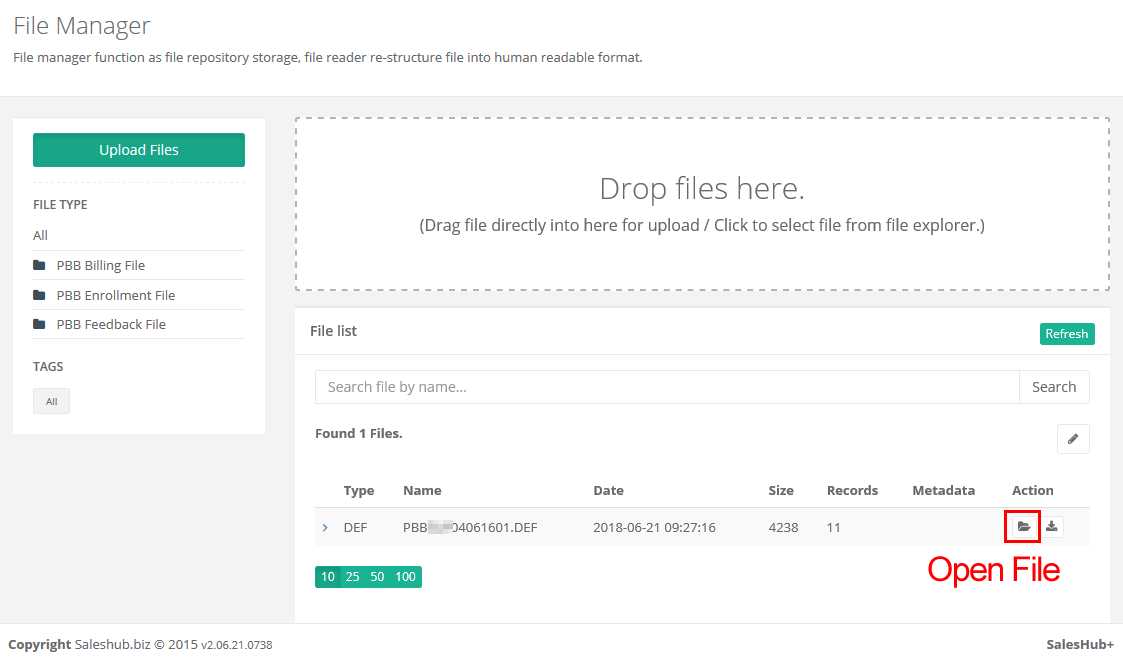
- Once File(s) uploaded, click on “open” button to bring up the File Reader
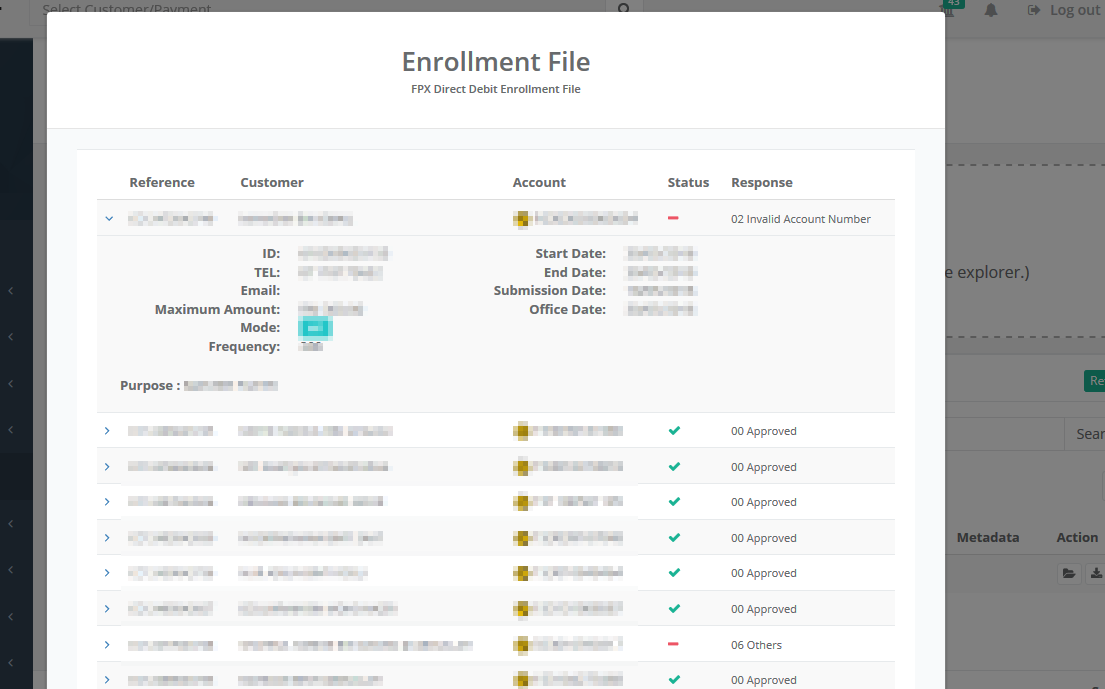
- File Reader extract & re-structure enrollment file into human readable format. Response Code re-mapped to more meaningful text for better understanding. Details enrollment information also can be found by expanding the table row for each records.
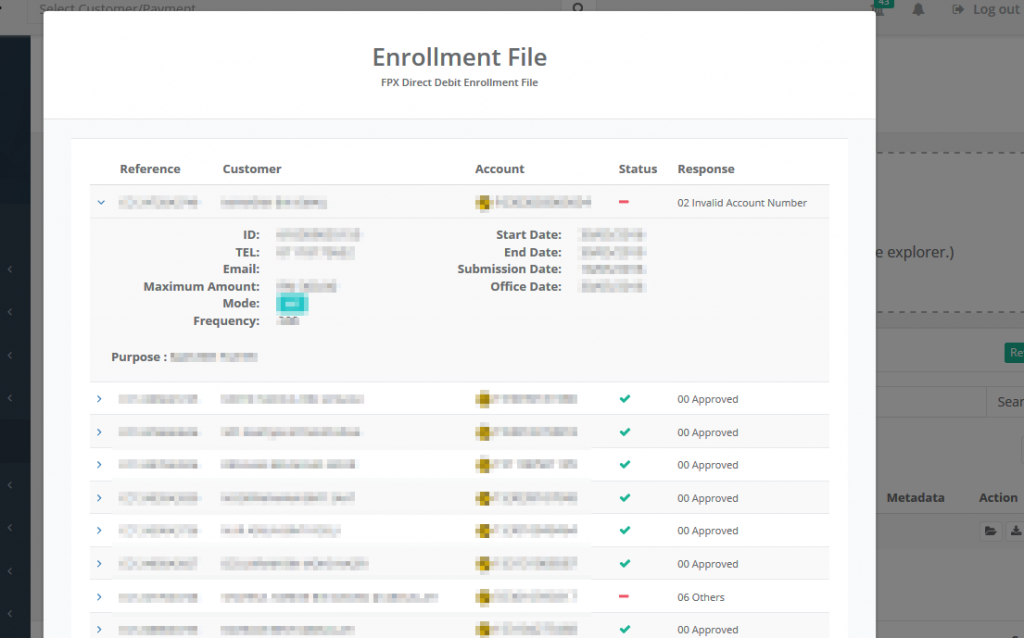
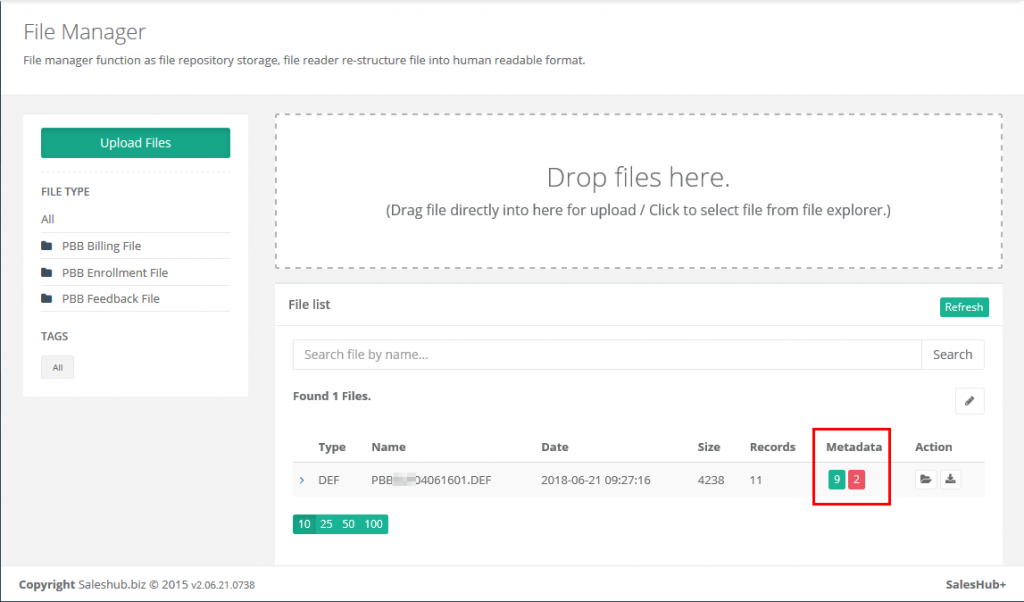
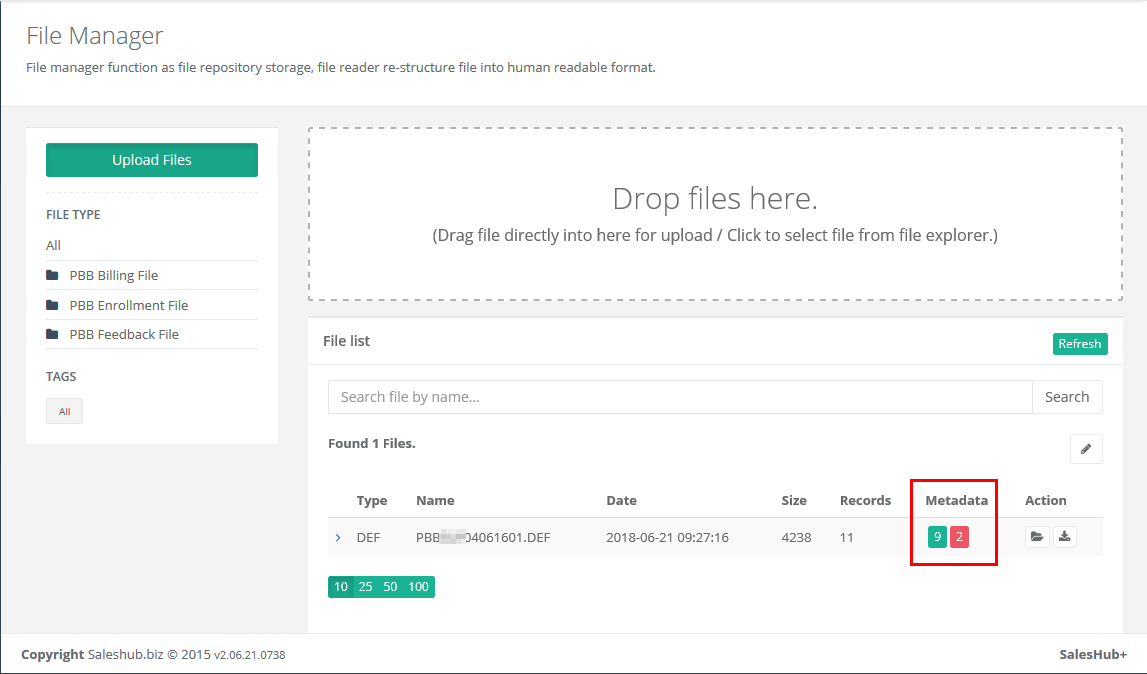
- Each file will update the metadata after its being opened at least once using file reader. Metadata work as a basic summary of each file. (Successful Records, Rejected Records)
List of Known Response Code
00 – APPROVED
01 – SIGNATURE DIFFER
02 – INVALID ACCOUNT NUMBER
03 – SIGNATURE INCOMPLETE
04 – AMENDMENT NOT COUNTERSIGNED
05 – DIFFERENT ACCOUNT HOLDER
06 – OTHERS
81 – MISSING MANDATORY FIELDS
82 – INVALID DATA
83 – DUPLICATED FORM
84 – MISSING SIGNATURE
85 – UNCLEAR IMAGE
Any code above 00 means application rejected.